
Power Apps code apps in Power Platform: tutorial, best practices, and production patterns


Power Apps code apps are one of the most important shifts in Power Platform right now. You get a true code-first experience in your IDE, but still deploy and operate inside a managed Microsoft platform. In this article we build a complete working example — a Google-style search UI — and walk through every step from clone to running app.
What are Power Apps code apps?
Code apps let you build custom web applications (for example with React or Vue), develop locally with modern web tooling, and run those apps on Power Platform runtime. You keep engineering flexibility while using platform capabilities such as identity, connectors, and governance controls.
When this model is worth it
- You need a custom UI that goes beyond standard low-code patterns.
- You want source control and CI/CD discipline from day one.
- You need to combine developer velocity with enterprise governance.
- You want one deployment model across environments instead of ad-hoc hosting.
The example we built
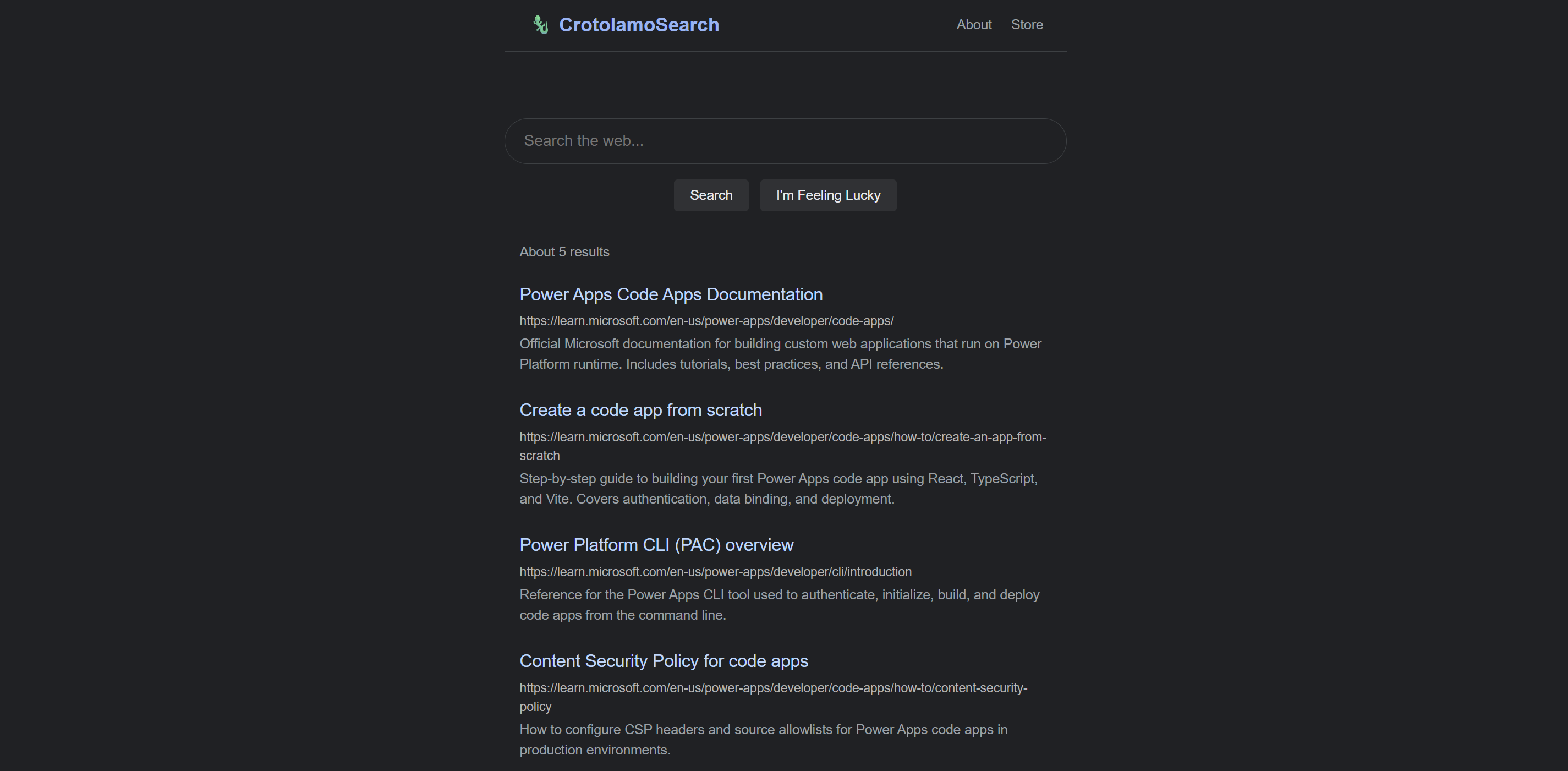
We built a Google-style search interface: dark theme, search box with focus animation, and a list of results backed by dummy data. Fully functional — no placeholders. The repo is at git.lago.dev/Lago/power-apps-codeapps-blog.
Step-by-step from zero to running app
Step 1. Prepare prerequisites
- Power Platform environment with code apps enabled.
- Node.js LTS.
- Power Apps CLI (PAC) — install via the command below.
- A non-default solution strategy for ALM.
Install the PAC CLI with the following .NET command:
dotnet tool install --global Microsoft.PowerApps_CLIStep 2. Clone and install
The template includes React 19, TypeScript, Vite 7, and the @microsoft/power-apps client library. After cloning, run:
npm installThis installs all required dependencies including the Power Apps runtime bridge.
Step 3. Authenticate and select environment
Authenticate with pac auth create and select your target environment before proceeding. Make sure you are targeting the correct environment — this is a common source of issues.
pac auth createStep 4. Initialize the code app
Run pac code app init from the repo root. This scaffolds the app, registers it in your solution, and creates the connection reference files that wire your app to the Power Platform runtime.
pac code app initStep 5. Run locally
Run the dev server. The app will be available at http://localhost:5173:
npm run devThe UI loads immediately with hot-reload as you edit.
Step 6. Build and push to Power Platform
Run pac code app update to push the latest build. After pushing, find the app in make.powerapps.com under Apps. The app will appear as a code app type, distinct from canvas or model-driven apps.
If done correctly, you should see something like this:
Project structure
The template follows standard Vite + React conventions. Key files:
- App.tsx — main UI component
- main.tsx — entry point
- package.json — dependencies and scripts
- vite.config.ts — Vite configuration
The @microsoft/power-apps library handles lifecycle and communication with the Power Platform runtime. You write React — it handles the rest.
Replacing dummy data with real data
The App.tsx component has a dummyResults array. To connect to real data, replace this with calls to the PAC CLI-generated connector services. See How to: Connect your code app to data on Microsoft Learn for the full walkthrough.
Trade-offs and limitations
- Code apps require a code-first mindset — you manage build tooling, dependencies, and deployment yourself.
- PAC CLI requires dotnet. If dotnet is not available in your environment, consider using the manual URL method to get connection metadata.
- Excel Online (Business) and Excel Online (OneDrive) connectors are not yet supported.
- You can only configure code apps to use existing connections — creating new connections through PAC CLI is not yet supported.
Best practices for production
- Treat your code app as a solution component. Include it in a solution and use deployment pipelines to move between environments.
- Use connection references instead of direct connections — this decouples your app from user-specific credentials and enables environment promotion.
- Store connection IDs in environment variables or a config file — never hardcode them.
- Use the mock service pattern to develop locally without real connector credentials, then swap for the real service at deploy time.
- Application Insights integrates with Power Apps code apps for telemetry — use the instrumentation key from your environment variables.
Final take
Power Apps code apps are not just a new template. They are a serious path for teams that want the flexibility of custom web development with the governance and platform story of Power Platform. If you have been waiting for a way to bring real engineering discipline to Power Apps — this is it.
Official references
- Power Apps code apps overview — Microsoft Learn
- Power Apps CLI reference — Microsoft Learn
- How to: Connect your code app to data — Microsoft Learn
- Code apps architecture — Microsoft Learn
- pac code app init — PAC CLI reference