
Power Apps Code Apps – Part 3: CI/CD with Azure DevOps and Managed Solutions

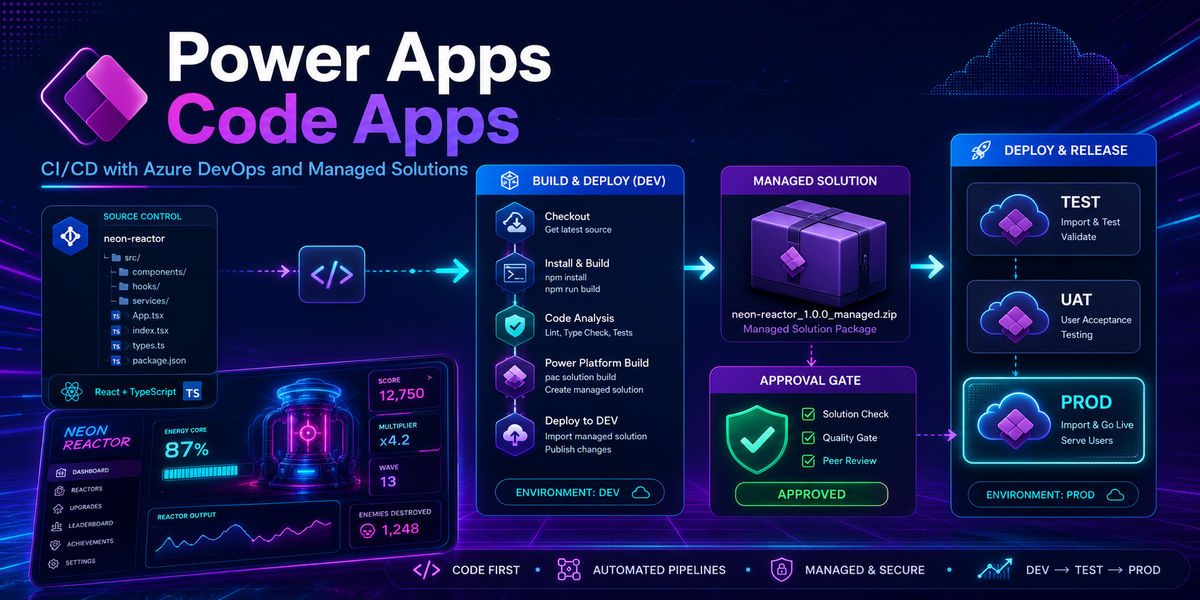
Power Apps code apps give us something Power Platform developers have wanted for a long time: a proper code-first development experience without leaving the managed Power Platform runtime.
We can build with React, TypeScript, Vite, or another familiar web stack, work locally in our preferred IDE, store everything in Git, and still publish the application as a Power Apps component.
But building the app is only half the story.
At some point, somebody will ask the inevitable question:
How do we move this thing from a developer’s laptop to DEV, TEST, and PROD without relying on a carefully rehearsed sequence of manual clicks?
That is the question this article answers.
I created the Power Apps Code Apps Pipelines repository as a practical proof of concept for building, deploying, and promoting a Power Apps code app with Azure DevOps.
The repository contains a complete React application, a development deployment pipeline, and a controlled production promotion pipeline.
Let’s open the reactor.
What is inside the repository?
The repository contains three main pieces:
power-apps-codeapps-pipelines
├── CodeApp_NeonReactor
├── pipeline-dev.yml
└── pipeline-prod.yml
Neon Reactor
CodeApp_NeonReactor is a React and TypeScript Power Apps code app.
Instead of using a traditional business form, the sample is a small arcade-style reflex game called Neon Reactor. Players have 30 seconds to hit cyan targets, avoid magenta traps, build combos, and beat their previous score.
Why use a game for a deployment proof of concept?
Because it keeps the application itself deliberately simple:
- No Dataverse tables are required.
- No connector configuration is required.
- No environment-specific business data is required.
- Successful deployment is visually obvious.
- The sample remains fun enough that people actually test it.
This allows the project to focus on the real subject of the experiment: how a code app is built, identified, deployed, packaged, and promoted.
The application uses React 19, TypeScript, Vite, and the Power Apps client library for code apps.
Microsoft describes code apps as custom web applications developed in a code-first IDE that can run inside the Power Platform host. They support standard single-page application architectures while integrating with Power Platform capabilities.
The deployment architecture
The repository separates deployment into two different processes:
Source code
    │
    ▼
Azure DevOps DEV pipeline
    │
    ├── Install dependencies
    ├── Build React application
    ├── Authenticate to Power Platform
    ├── Create or locate the code app
    └── Push the application to DEV
             │
             ▼
      Power Platform solution
             │
             ▼
Azure DevOps PROD pipeline
    │
    ├── Export managed solution
    ├── Publish pipeline artifact
    ├── Wait for manual approval
    └── Import managed solution into PROD
The distinction is important.
The development pipeline deploys the application directly using the code app tooling. The production pipeline does not rebuild or directly push the app into PROD. Instead, it promotes the managed Power Platform solution that contains the code app.
That is the small architectural decision that turns a deployment script into an ALM process.
Power Platform solutions are the platform’s primary mechanism for application lifecycle management. Microsoft recommends developing with unmanaged solutions and deploying managed solutions into downstream environments. Managed solutions should be produced by the build process and treated as versioned build artifacts.
Pipeline 1: Build and deploy the code app to DEV
The first pipeline is defined in pipeline-dev.yml.
Its responsibility is to validate the project, build it, and publish it into the development Power Platform environment.
Step 1: Trigger only for relevant changes
The pipeline uses path filters so that it runs only when important code app files change.
For example:
paths:
  include:
    - CodeApp_NeonReactor/src/**
    - CodeApp_NeonReactor/public/**
    - CodeApp_NeonReactor/index.html
    - CodeApp_NeonReactor/power.config.json
Updating documentation should not redeploy the application. Changing its source code should.
This sounds small, but preventing unnecessary deployments keeps pipeline history cleaner and reduces noise for the development team.
Step 2: Build the React application
The pipeline installs Node.js, restores the exact dependency versions from package-lock.json, and builds the application:
npm ci
npm run build
The resulting Vite output is written to the dist directory.
Before attempting a deployment, the pipeline explicitly verifies that this directory exists. A missing build output produces an immediate and understandable failure instead of a mysterious Power Platform error later in the job.
Step 3: Install the Power Platform CLI
The pipeline installs a defined version of the Microsoft Power Apps CLI tool:
dotnet tool install --global Microsoft.PowerApps.CLI.Tool \
  --version "$PAC_CLI_VERSION"
Pinning the CLI version makes pipeline runs more reproducible. Without version pinning, a new CLI release could subtly change behaviour between two deployments of the same commit.
Step 4: Validate configuration before authentication
The pipeline checks that all required values are available before trying to connect:
- Environment URL
- Tenant ID
- Deployment identity
- Authentication secret
- PAC CLI version
- Code app directory
This produces focused error messages such as:
ENVIRONMENT_URL is empty.
Set it to your Dataverse organisation URL.
A pipeline should fail loudly and early. “Something went wrong” is not an observability strategy.
Step 5: Test access to the environment
After authentication, the pipeline runs:
pac code list
This serves two purposes:
- It verifies that authentication succeeded.
- It confirms that the deployment identity has permission to access code apps in the target environment.
The output is inspected for HTTP 403 and permission-related errors. Those errors are treated as permanent configuration problems and are not retried.
Retrying a missing security role three times does not make it more secure. It only makes the pipeline slower.
Solving the appId problem
One of the more interesting parts of code app automation is application identity.
The power.config.json file contains information such as:
{
  "appId": "a-code-app-guid",
  "appDisplayName": "Neon Reactor",
  "buildPath": "./dist",
  "buildEntryPoint": "index.html"
}
The appId determines whether the deployment updates an existing app or creates another one.
That creates several possible scenarios:
| Configuration | Result |
|---|---|
appId contains a valid existing ID | Existing app is updated |
appId is empty | A new app can be created |
appId contains an ID from another environment | Deployment may fail with ApplicationNotFound |
| App exists but the repository has no ID | Pipeline must discover or recreate the relationship |
The DEV pipeline handles these cases instead of assuming that power.config.json is always correct.
Looking up an existing application
When appId is missing, the pipeline checks the output of pac code list and attempts to find an application with the configured display name.
When a match is found, the pipeline writes the discovered ID into power.config.json.
This avoids creating a new copy of the application during every deployment.
Recovering from a stale application ID
An application ID is environment-specific. Copying a configuration file between environments can therefore leave the project pointing to an app that does not exist in the current target.
When the push returns ApplicationNotFound, the pipeline performs a controlled recovery:
- Clear the invalid
appId. - Retry the deployment once using the app-creation flow.
- Capture the newly created app ID.
- Store it back in
power.config.json.
The recovery happens only once. It is not an infinite loop disguised as optimism.
Persisting the generated application ID
When Power Platform creates a new application, the pipeline extracts its ID from the deployment output and commits the updated power.config.json back into the repository.
The commit uses [skip ci] to avoid triggering another deployment from the pipeline’s own configuration update.
This makes the repository remember which code app it manages in the development environment.
There are other ways to manage this state, including pipeline variables or environment-specific configuration files, but persisting it in Git makes the behaviour particularly easy to understand in a proof of concept.
Retry only what might actually recover
Not every deployment error deserves another attempt.
The DEV pipeline separates failures into two groups.
Permanent failures
These cause the pipeline to stop immediately:
- HTTP 403
- Missing permissions
- Invalid credentials
- Missing required variables
- Missing build output
- Other explicit HTTP errors
Potentially transient failures
HTTP 5xx and internal server errors are retried up to three times, with a delay between attempts.
This is a much healthier pattern than placing the entire deployment command inside a generic retry loop.
A retry policy should answer one question:
Is there a reasonable chance that running the exact same operation again will succeed?
For an unavailable service, perhaps yes.
For an account without permissions, definitely not.
Pipeline 2: Promote the managed solution to PROD
The production pipeline is defined in pipeline-prod.yml.
It is intentionally different from the DEV pipeline.
It does not run automatically after every code change. It has no continuous integration trigger and must be started manually.
The pipeline performs four stages:
Branch guard
    ↓
Export managed solution
    ↓
Manual approval
    ↓
Import into PROD
Stage 1: Validate the source branch
The pipeline refuses to run from an unexpected branch.
This prevents somebody from promoting an experimental feature branch directly into production simply because they found the “Run pipeline” button.
The current repository uses main as its default branch while the sample YAML references master. Before running the pipelines, align these values and choose one branch name consistently.
This is exactly the kind of tiny configuration mismatch that can turn a beautiful pipeline diagram into an angry red rectangle.
Stage 2: Export a managed solution
The pipeline authenticates against the source environment and exports the solution as managed:
pac solution export \
  --name "$SOLUTION_UNIQUE_NAME" \
  --path "$EXPORT_PATH" \
  --managed \
  --overwrite
The exported ZIP is then published as an Azure DevOps pipeline artifact.
This means the production deployment uses a concrete, immutable package produced earlier in the same run.
It does not export the solution again after approval. It does not rebuild the frontend. It promotes the exact artifact that was reviewed.
Microsoft recommends using source control for Power Platform solutions and automating solution export and import as part of a healthy ALM process.
Stage 3: Wait for manual approval
Before the production import, the pipeline pauses at an Azure DevOps manual validation step.
The approver receives contextual information including:
- Source branch
- Commit ID
- Pipeline run number
- Solution name
- Deployment instructions
The approval instructions explicitly ask the reviewer to validate the change ticket, release notes, and deployment window.
Automation does not mean removing humans from every decision. It means placing human decisions at the points where judgement adds value.
Stage 4: Import into production
After approval, the pipeline downloads the previously exported artifact, authenticates against the production environment, and imports it:
pac solution import \
  --path "$IMPORT_PATH" \
  --publish-changes
At this point, PROD receives the managed solution containing the code app.
No direct pac code push is performed against production.
Why not push the code app directly into PROD?
Technically, a direct push may look simpler:
Build app → pac code push → PROD
But this bypasses several useful ALM controls.
Promoting the managed solution instead gives us:
- A deployable and traceable artifact
- A clear DEV-to-PROD boundary
- Solution dependency handling
- Consistent component packaging
- Environment deployment history
- A place for manual approvals and checks
- A repeatable rollback and upgrade strategy
Once a code app is deployed to an environment, it can be added to a Power Platform solution and promoted through standard ALM stages. Microsoft also supports deploying code apps through native Power Platform Pipelines after the app has been added to a solution.
The code app may be built with React, but once it enters Power Platform, it should participate in Power Platform ALM.
Required pipeline configuration
The sample expects several Azure DevOps variables.
DEV pipeline
CODEAPP_DIR
NODE_VERSION
PAC_CLI_VERSION
TENANT_ID
ENVIRONMENT_URL
SERVICE_USERNAME
SERVICE_PASSWORD
PROD pipeline
SOLUTION_UNIQUE_NAME
SOURCE_ENVIRONMENT_URL
SOURCE_TENANT_ID
SOURCE_USERNAME
SOURCE_PASSWORD
PROD_ENVIRONMENT_URL
TARGET_TENANT_ID
PROD_USERNAME
PROD_PASSWORD
Passwords and other credentials must be stored as secret variables or in protected variable groups, never in YAML, source code, or committed .env files.
Azure DevOps encrypts secret variables and supports protected variable groups with approvals, checks, and pipeline permissions.
Production hardening
This repository is a proof of concept. Before using the pattern in an enterprise project, I would add several layers of armour.
Use a service principal
The sample pipeline demonstrates the process using username and password authentication.
For production automation, a Microsoft Entra service principal and Power Platform application user are the better model. They provide a non-human identity, clearer ownership, more controlled permissions, and eliminate dependency on an individual user account.
Microsoft recommends service principal or client-credentials authentication for unattended Power Platform automation.
Add automated quality gates
The build stage could be extended with:
npm run lint
npm test
npm run build
For solution promotion, I would also consider:
- Power Apps Checker
- Solution dependency validation
- Environment variable validation
- Connection reference validation
- Deployment settings files
- Automated smoke tests
- Release notes generated from commits
Microsoft’s Power Platform Build Tools include tasks for solution handling, artifact generation, deployment, and static analysis with Power Apps Checker.
Keep generated and sensitive files out of Git
A production repository should normally exclude:
.env
node_modules/
dist/
*.local
Dependencies should be restored with npm ci, and the build output should be generated by the pipeline.
The repository should contain the recipe, not the contents of the kitchen after dinner.
Prepare for the new npm-based CLI
This sample currently uses commands such as:
pac code list
pac code push
Microsoft has introduced a newer npm-based CLI as part of the Power Apps client library for code apps. Microsoft states that this tooling will eventually replace the pac code commands.
The current pipeline remains useful for understanding the deployment mechanics, but its command layer should be migrated as the new CLI matures.
Protect the production environment
Azure DevOps environments, service connections, and variable groups can all be protected with permissions, approvals, and checks.
Production should not be reachable merely because somebody can edit a YAML file.
What this proof of concept demonstrates
The most valuable part of this repository is not the YAML syntax.
It is the separation of responsibilities:
- React and TypeScript handle the application.
- Vite produces the build.
- Git tracks the source and configuration.
- Azure DevOps orchestrates the process.
- The code app CLI handles development deployment.
- Power Platform solutions provide the ALM boundary.
- Managed solution artifacts move between environments.
- Human approval protects the final production step.
That combination lets code apps behave like serious application components rather than colourful ZIP files passed around in Teams.
Try it yourself
The complete sample is available here:
Power Apps Code Apps Pipelines repository
Before running it:
- Rotate and configure your own deployment credentials.
- Store all sensitive values as Azure DevOps secrets.
- Align the
mainormasterbranch references. - Configure the DEV pipeline variables.
- Deploy Neon Reactor into the development environment.
- Add the code app to a Power Platform solution.
- Configure the production pipeline.
- Export, approve, and promote the managed solution.
Once the pipeline is working, change something visible in the application, push the commit, and watch the reactor travel from source code to Power Platform.
Building a code app is exciting.
Being able to explain exactly how it reached production is even better.